
Multi-Book Accounting in Odoo

Companies operating across borders often need to report the same transactions in more than one currency or under more than one set of books. Maybe you're a Malaysian company with a US subsidiary that needs its numbers in USD, or a group entity that has to keep a statutory book alongside a management book. Doing this by hand means posting every entry twice, converting currencies manually, and hoping nothing gets out of sync.
Excelroot has built a Multi-Book Accounting module for Odoo that solves this natively. It lets a single company keep one Primary book (in the company's own currency) plus any number of Secondary books, each with its own currency. Post a journal entry once in the Primary book, and it automatically mirrors into every active Secondary book, converted to that book's currency. No duplicate data entry, no manual conversion, and no risk of the books drifting apart.
Key Features
Multiple secondary books, each with its own currency, code, and chart of account mappings
Automatic mirroring: post once in the Primary book, entries copy themselves into every active Secondary book
Automatic currency conversion into each book's own currency using the exchange rates already configured in Odoo
Manual posting directly into a Secondary book, for book-specific adjustments that shouldn't touch the Primary book
Cascading cancellation: cancel a Primary entry and its mirrored copies cancel automatically
Per-company control: turn multi-book accounting on or off independently for each company in your database
Book-level filtering on Trial Balance, General Ledger, Partner Ledger, Partner Ageing, and the Financial Report (Balance Sheet / P&L)
Setting Up Multi-Book Accounting
Step 1: Enable the Feature
Once the Multi-book module is installed, every company automatically gets a Primary book with the code PRI. To turn on multi-book accounting for a company, go to Accounting → Configuration → Settings, find Multi-Book Accounting, and switch it on. This setting is per-company, so enabling it only affects the company you're currently working in.

Multi-Book Accounting toggle in Accounting settings
Step 2: Create a Secondary Book
Go to Accounting → Configuration → Accounting Books and create a new Secondary book. Give it a name, a code, and a currency, which can be different from the company currency or the same, depending on what you need.
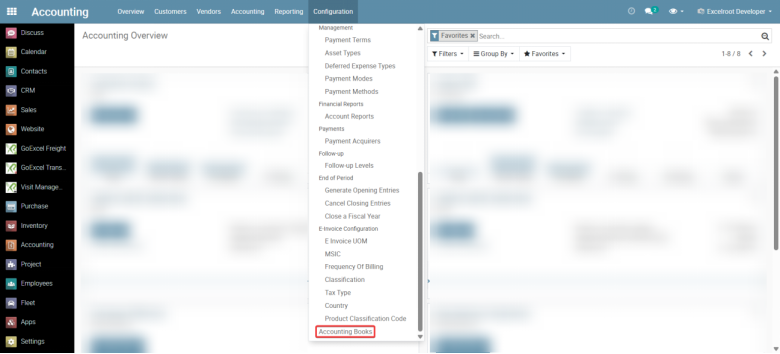


Creating a new Secondary book with its own name, code, and currency
Step 3: Map Accounts (Optional)
If a Secondary book should post certain transactions to different accounts than the Primary book, open the book and add Account Mappings. Each mapping redirects a Primary account to a specific account in that book, so only the accounts you choose to remap are affected.
Account Mappings let a Secondary book redirect specific Primary accounts
Step 4: Set Up Currency Rates
Before posting, make sure there's a currency rate covering the dates you'll be posting on for each Secondary book's currency. Without a rate, Odoo has nothing to convert against and mirroring will fail.


Currency rates must be in place for the Secondary book's currency
How Mirroring Works
With setup complete, day-to-day use is simple: create and post journal entries in the Primary book exactly as you always have. The module takes care of the rest. Invoice/Vendor Bill and Payment creation also mirrors the multi-books automatically.
Posting Mirrors Automatically
Create and post a normal journal entry in the Primary book. Open it, and you'll see a Book Entries smart button showing a count. Click it to see the mirrored entries the module created, one for every active Secondary book.

The Book Entries smart button shows how many mirrored entries were created

Book Entries associated with the Primary JE
Opening one of the mirrored entries confirms it points to the right Secondary book. If that book's currency is different from the company currency, the standard Debit/Credit columns are hidden and replaced with Book Debit and Book Credit, showing the amount already converted into the book's own currency. Any account mappings configured earlier are applied automatically, so the mirrored line uses the mapped account rather than the original.

A mirrored entry showing Book Debit/Book Credit in the Secondary book's currency
Posting Directly into a Secondary Book
Not every entry needs to originate in the Primary book. You can create a new journal entry and pick a Secondary book directly in the Book field, then post it as a book-specific adjustment. These entries stay in that book only, mirroring only ever starts from the Primary book, never from a Secondary one.

Posting a journal entry directly into a Secondary book
Cancelling Entries
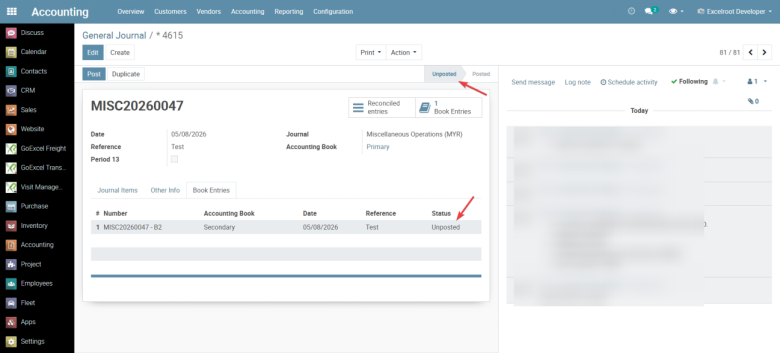
Cancel a Primary journal entry, and its mirrored copies in every Secondary book are cancelled automatically. There's no need to track down and reverse each mirrored entry by hand.
Multi-Company Isolation
Accounting Books are scoped to their company. Switch to a second company and you won't see the first company's books anywhere, not in the list view, and not in search. Multi-Book Accounting can also be switched on in one company and off in another; each company's setting is fully independent.
Multi-Book Financial Reports
Once you're posting across multiple books, you'll want to see reports broken down the same way. Go to Accounting → Reporting and open Trial Balance, General Ledger, Partner Ledger, Partner Ageing, or the Financial Report (Balance Sheet / P&L). Each of these now has an Accounting Books filter.

The new Accounting Books filter on financial reports
Run a report with no book selected, and it shows all books combined in the company currency. Select exactly one Secondary book, and the report switches to that book's own currency. Select multiple books at once, and the report falls back to company currency, since it can't display two currencies side by side.

Report showing figures in a single Secondary book's currency
Why It Matters
For businesses that need parallel books, whether for statutory reporting in a foreign subsidiary, group consolidation, or simply keeping a currency-specific view of the same transactions, this removes the manual double entry that normally comes with it. One posting, automatic conversion, and consistent reports across every book, all inside Odoo's standard accounting workflow.


Comments