
Bank Statement OCR & Auto-Reconciliation in Odoo

Updated: Aug 13
In Odoo, typically u can use csv or Excel of the bank statement, change to the Odoo supported format and let Odoo do the matching for you. It will be very time consuming for B2C business that has high volume of bank transaction payment.
Excelroot has built a Bank Statement OCR and Auto-Reconciliation module for Odoo that removes the manual retyping and matching entirely. Upload a local Malaysia bank statement, whether it's a PDF or a CSV file, and the module reads it, automatically matches bank lines against your company ledger, and gives you a single screen to review, adjust, and confirm the matches.
Key Features
Reads statements in PDF and CSV formats for Malaysia banks.
Malaysia Bank-specific templates that map each bank's column headers (date, description, debit, credit, balance) to the fields Odoo needs
Automatic matching that pairs company ledger lines against bank statement lines by amount and description
A reconciliation screen showing matched and unmatched transactions side by side
Manual matching for anything not paired automatically, plus one-click unlinking of a match
Create a journal entry directly from an unmatched bank line, for bank charges, interest, or other items with no existing ledger entry.
Search by amount, vendor, date, or reference to filter the reconciliation screen
A single Save step that confirms all matches and marks the matching ledger lines as cleared
Bank lines that are already reconciled are left out automatically if the same statement is uploaded again.
Setting Up Bank Statement Auto-Reconciliation
Step 1: Configure a Bank Template
Before a statement can be read, the module needs to know how that bank formats its statements. Go to Accounting → Configuration → Bank Recon Templates and create a template for the bank you are working with. Set the File Type (PDF or CSV), link the Bank Journal the template applies to, and map each column header on the statement (Date, Description/Transaction, Debit, Credit, Balance) to the right field. You can also set Page End Keywords so the system knows where a statement's data ends and disclaimers or signature blocks begin.

Step 2: Open a Bank Reconciliation Statement
With a template in place, open the relevant Bank Reconciliation Statement record under Accounting → Accounting → Bank Recon. Statements. This is the same screen used for standard bank reconciliation in Odoo, now with an added Auto Recon button.

How Auto-Reconciliation Works
Trigger Auto Recon
From the statement, click Auto Recon in the toolbar. This opens a wizard where you can upload the bank statement file for that period.


Upload and Process the Statement
Attach the statement, a PDF or a CSV file both work the same way, and click the Process button. The file is read directly using the template's column mapping. If you forget to upload a file, pick an unsupported bank, or upload a corrupted file, the system handles it without crashing: it either shows a clear message or, for a bad file, simply returns zero bank rows.


Review Matched Transactions
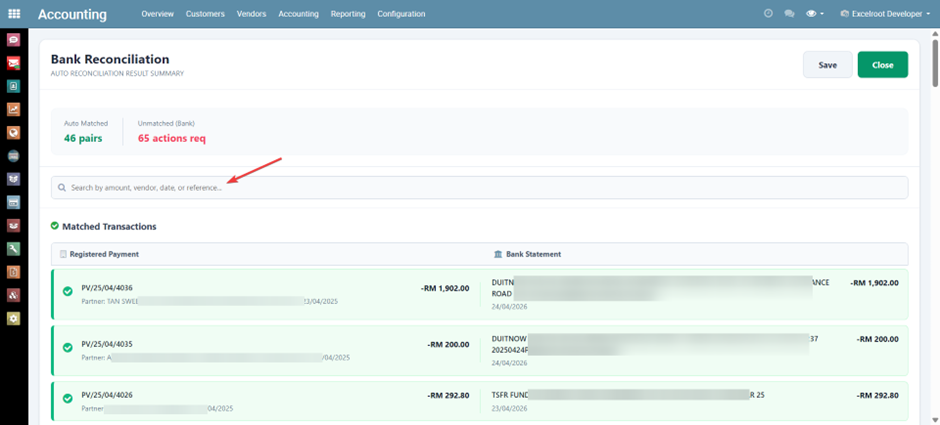
Once processing is done, a new results screen opens automatically. Rows the system could match confidently by amount and description show up at the top, under Matched Transactions, with your company-side payment on the left and the matching bank statement line on the right. A summary at the top shows how many pairs were matched automatically and how many bank lines still need attention.

Handle Unmatched Transactions
Anything the system couldn't confidently match, the same amount but a different description, duplicate amounts, or a bank line with nothing in the ledger, shows up in the Unmatched Transactions section below. Click the circle next to a company row, then click the matching bank row to pair them yourself.

Create Journal Entries for Bank-Only Items
Bank charges, interest, and other items that only show up on the statement won't have a matching company ledger line. For these, click Create Journal Entry on the unmatched bank row. A standard Odoo journal entry window opens, already filled in with the date, journal, and both the debit and credit lines based on that bank row's amount and account. Fill in the journal, save, and the new entry appears in the Matched section automatically.

The search bar above the results lets you filter by amount, vendor, date, or reference, which is useful once you're working through a long list of unmatched lines.
Save to Confirm
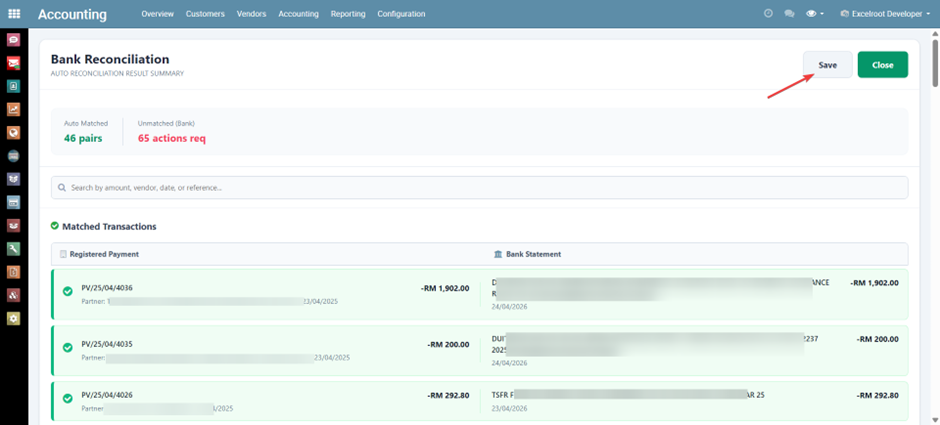
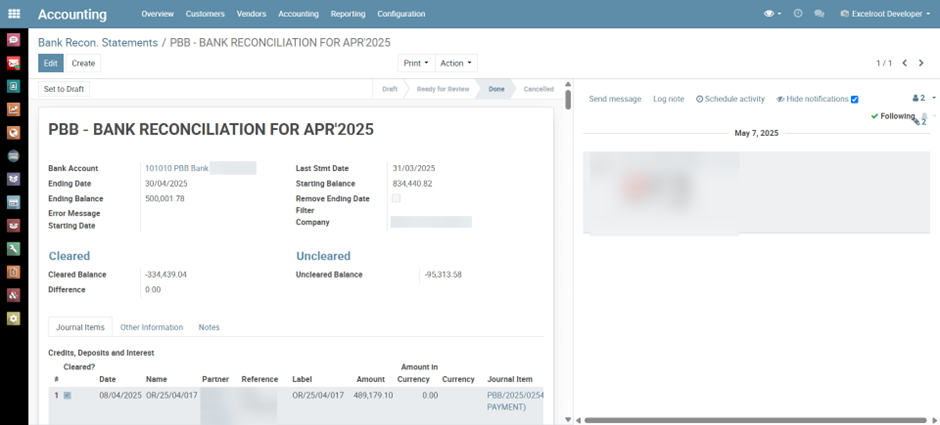
Once everything looks right, click Save at the top of the page and confirm. Every matched company line is marked as cleared, and you're taken back to the Bank Reconciliation Statement, where those lines are now ticked automatically.

Post the Statement
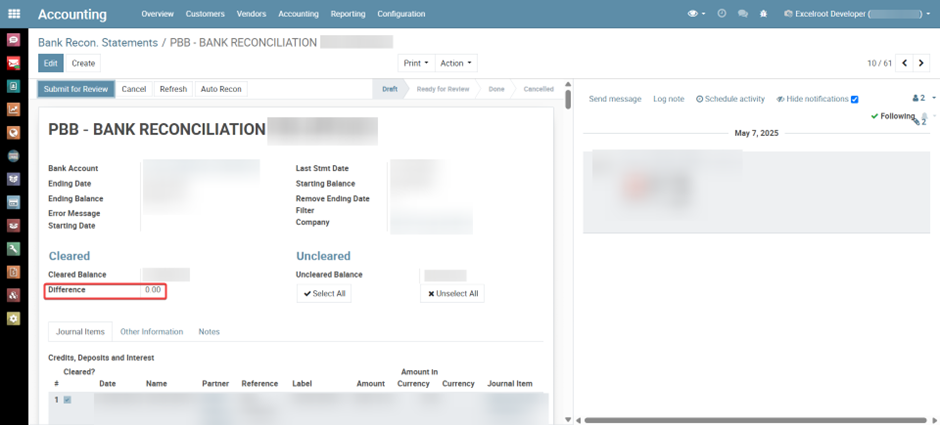
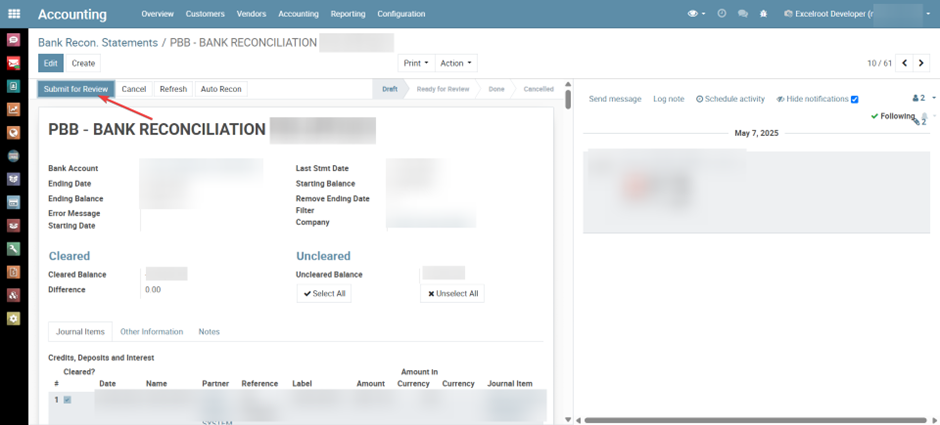
Once the difference between the cleared and uncleared balances is zero, submit the statement for review and post it as usual. If you upload the same statement again later, any bank line that's already been reconciled is left out automatically, so there's no risk of matching or clearing the same transaction twice.

Why It Matters
Bank reconciliation is one of the more repetitive tasks in month-end close, and it's a good fit for automated matching. By reading the statement directly and matching it against the ledger without manual re-entry, this module cuts reconciliation time from hours to minutes and removes the errors that come from retyping numbers by hand, all within Odoo's standard accounting workflow.


Comments